
Edit everything at once
Change dozens of items in a spreadsheet and upload them back, or fix one detail right in the table.
Why it's useful
- Fix a misspelled publisher across thirty books in one pass.
- Bring in a collection you've already catalogued somewhere else.
- You see exactly what will change before anything is saved.
How to use it
- 1
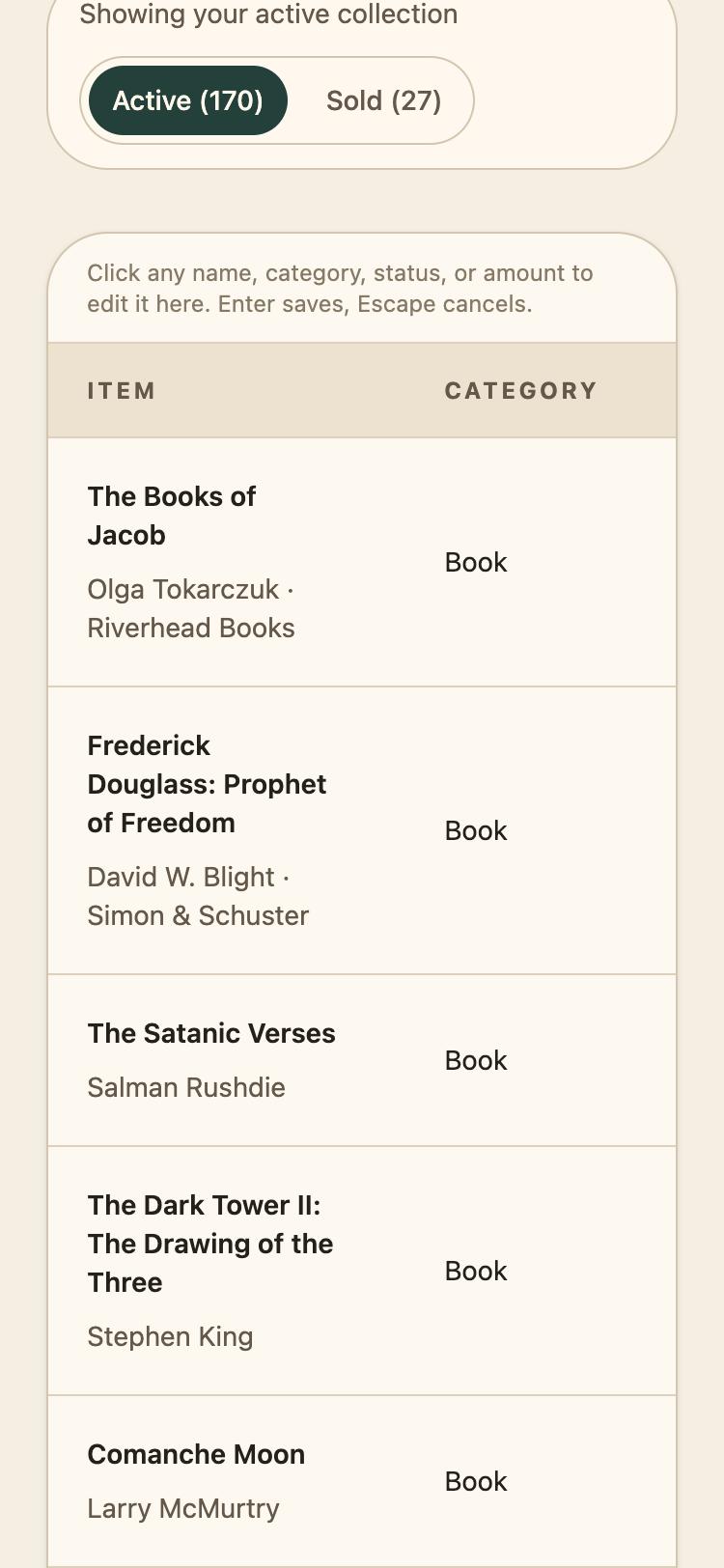
Quick fixes: edit in the Records view
On My Collection, switch to Records. Tap any name, category, status, or amount to edit it in place. Enter saves; Escape cancels.
- 2
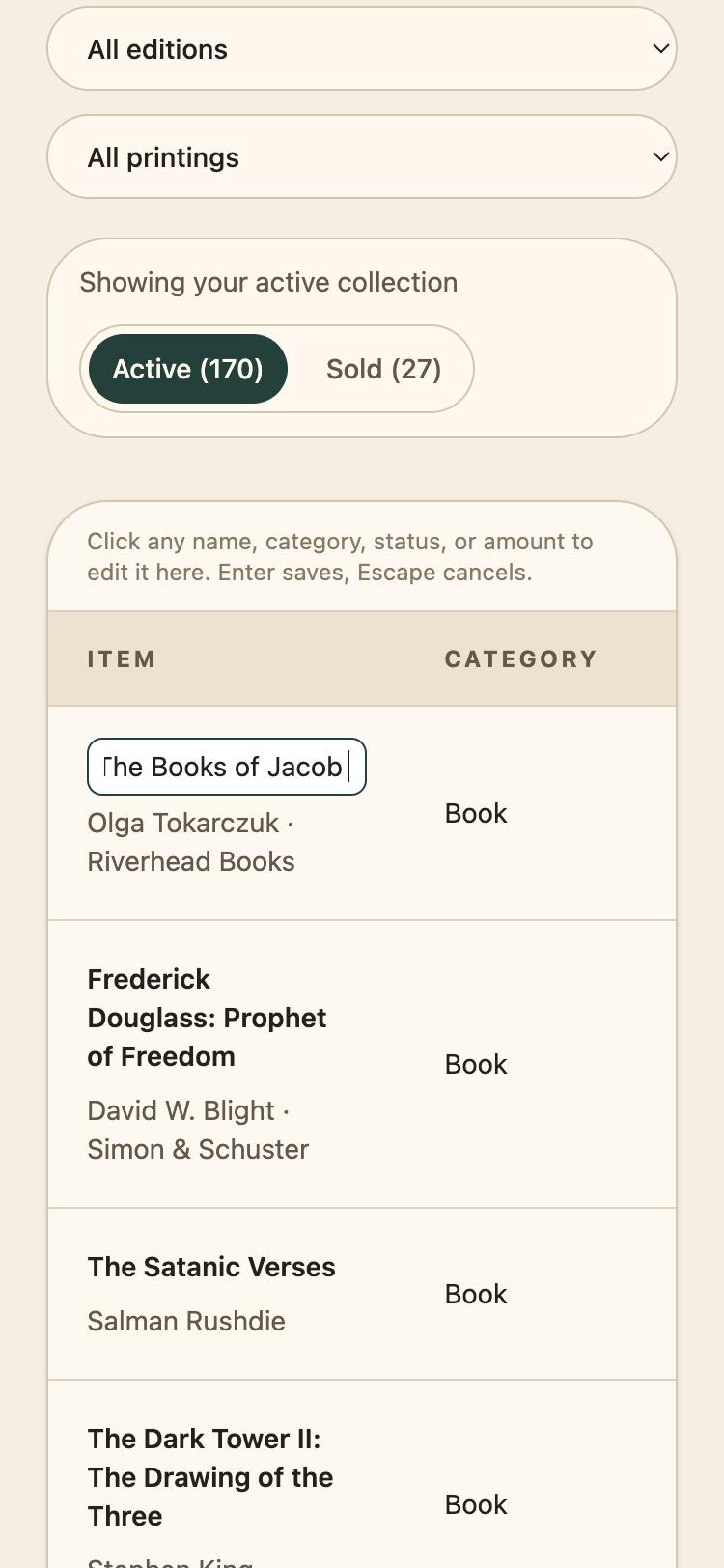
Edit one cell
The cell turns into a text box with the current value. Change it and press Enter, or press Escape to leave it as it was.
- 3
Big changes: export your collection
On My Collection, tap Export for insurance, then Export as CSV. Every row carries a ref column, like FF-0033, that ties it back to the item.
- 4
Change it in a spreadsheet
Open the file in Excel, Numbers, or Google Sheets and edit what you need. Leave ref alone so each row updates its item instead of making a copy. To remove an item, put yes in its delete column. New rows with an empty ref become new items.
- 5
Upload it back
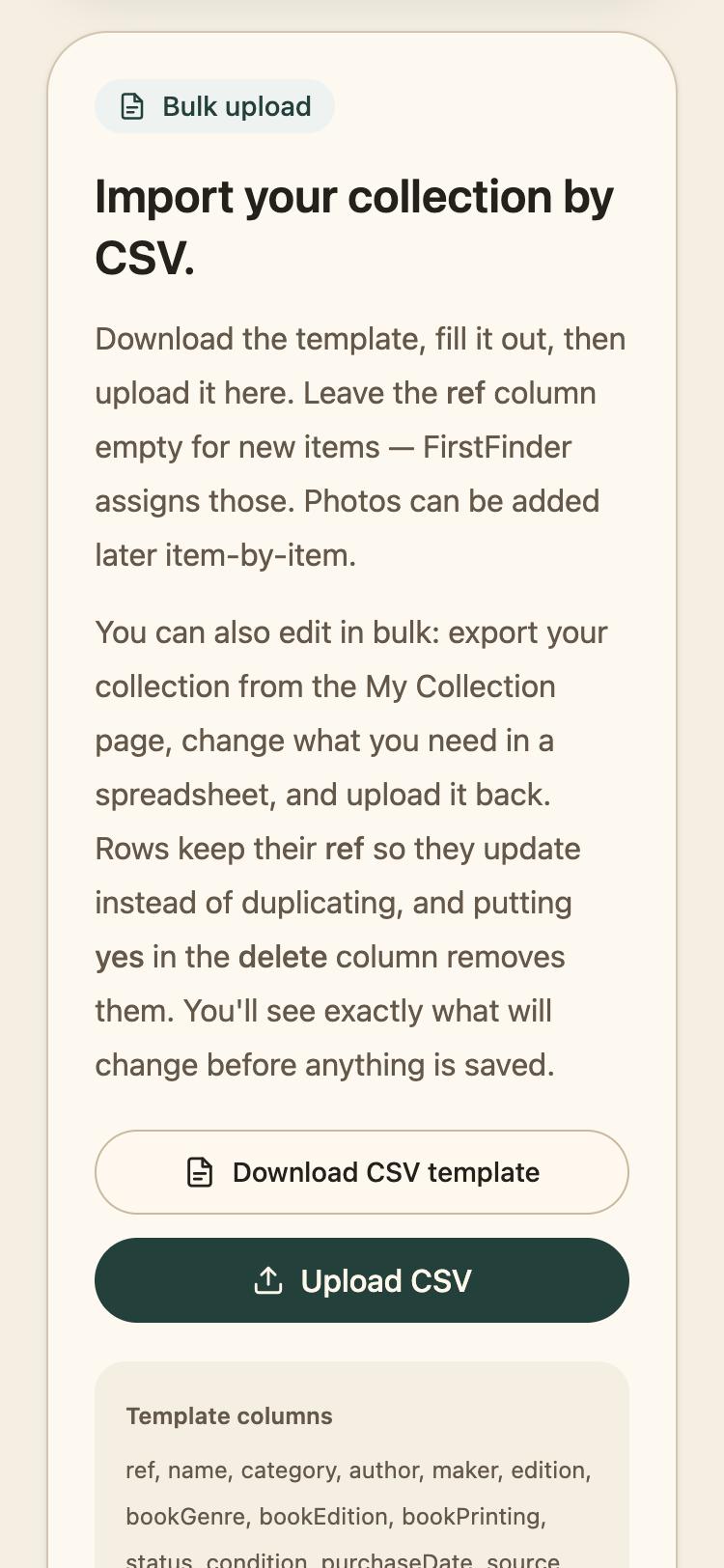
Go to Add Items, scroll to Bulk upload, and tap Upload CSV. FirstFinder shows what will be added, changed, and deleted, and nothing is saved until you confirm.
Good to know
- Starting from scratch? Download CSV template gives you the columns with a sample row.
- Photos aren't part of the CSV. Add them to items one by one.
- The export covers your active collection. Sold items aren't in it, so change those one at a time.
- A ref is never reused, even after its item is deleted, so an old export can't update the wrong book.