
Fill in an item by snapping a picture
Photograph a book's cover and copyright page in Quick Add, and FirstFinder fills in the title, author, publisher, and printing, and the edition when the page states it, with the reasoning shown so you can check it against the book.
Why it's useful
- Adding a book goes from typing every field to checking a few.
- The printing comes from the number line, worked out the same way every time, with the reason written next to the form.
- It only reads what's printed. Nothing is looked up or guessed, and anything you've already typed is left alone.
- Both photos stay with the item, so the copyright page is on file as evidence.
How to use it
- 1
Open Quick Add
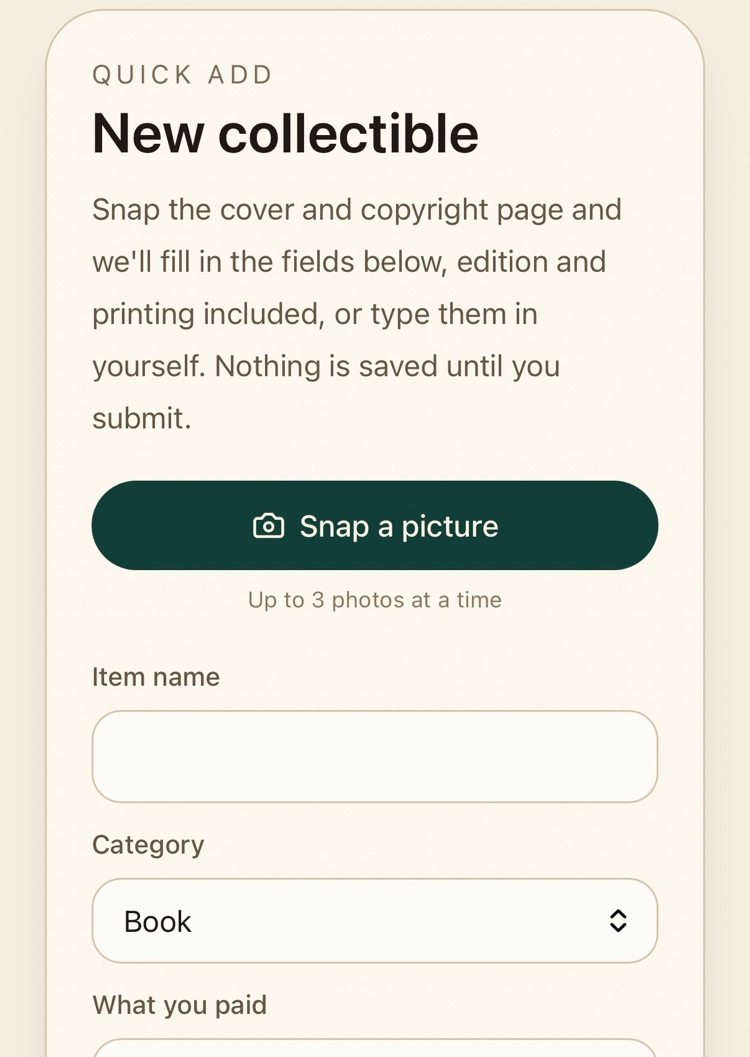
From the menu, choose Add Items. Snap a picture sits at the top of the Quick Add card, above the fields it fills.
- 2
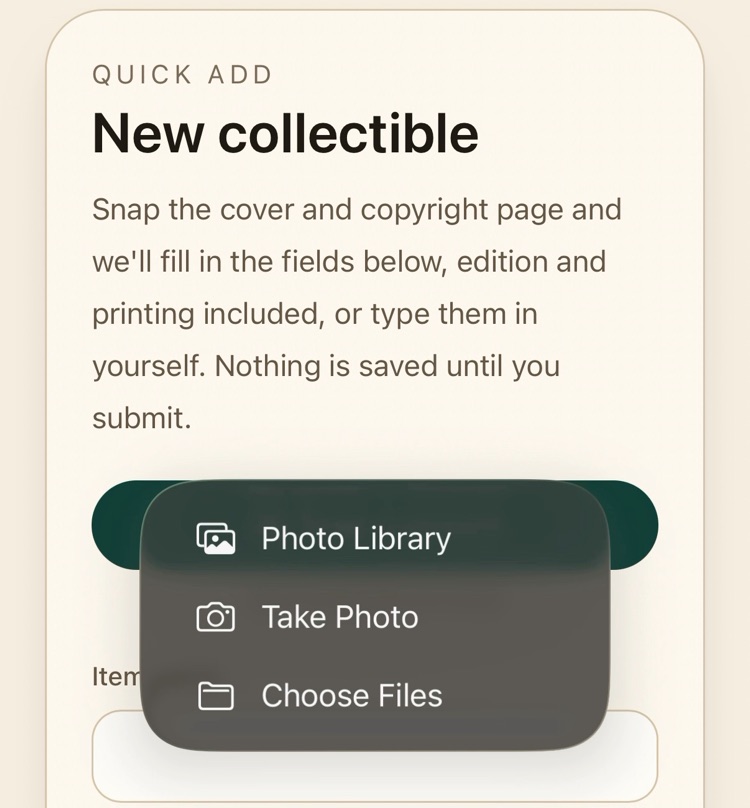
Take a photo, or pick one you already have
Tap Snap a picture. On a phone you can take a photo there and then, or choose from your library. You can send up to 3 photos at once, so the cover and copyright page can go together.
- 3
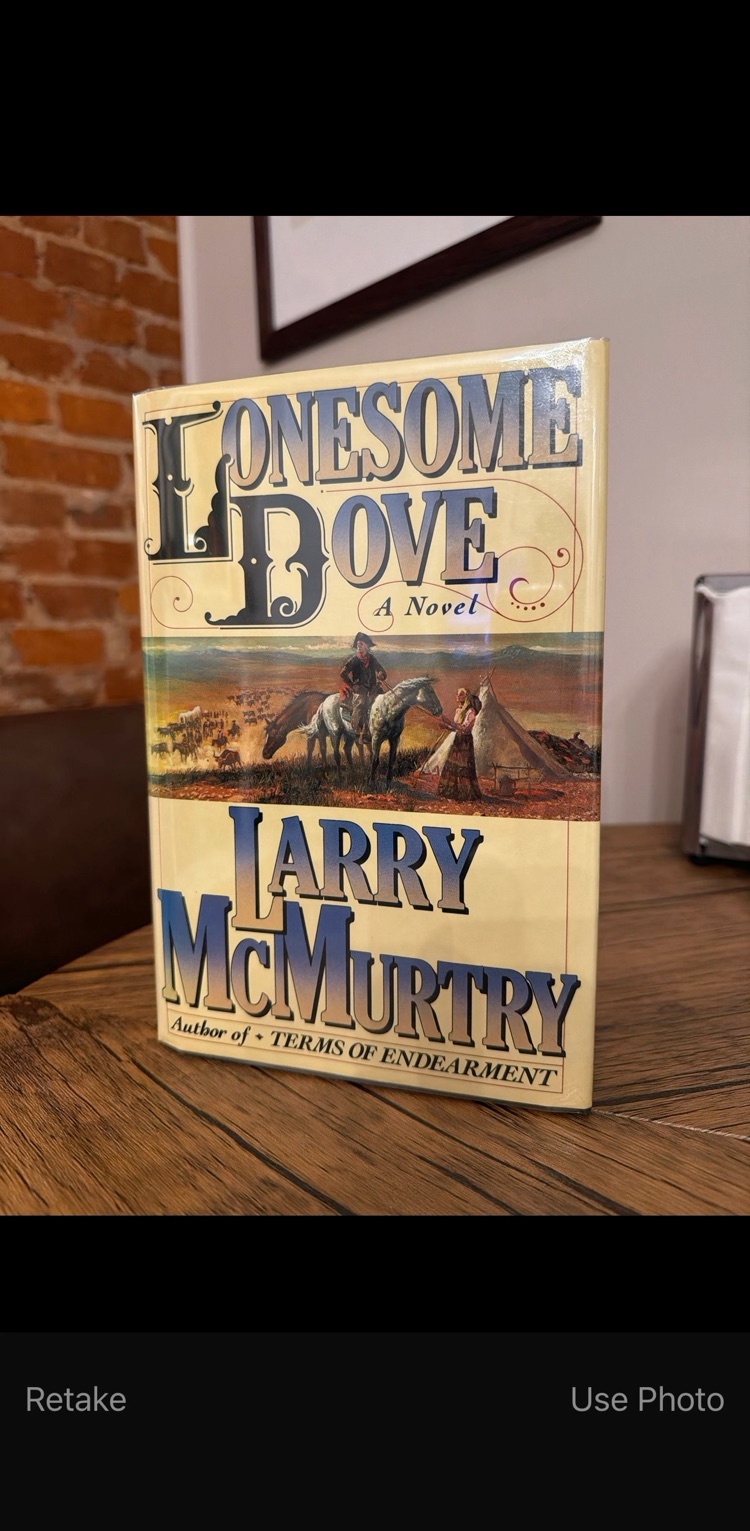
Snap the cover
A straight-on shot of the front cover, title and author readable, is all it needs.
- 4
Check what it filled in
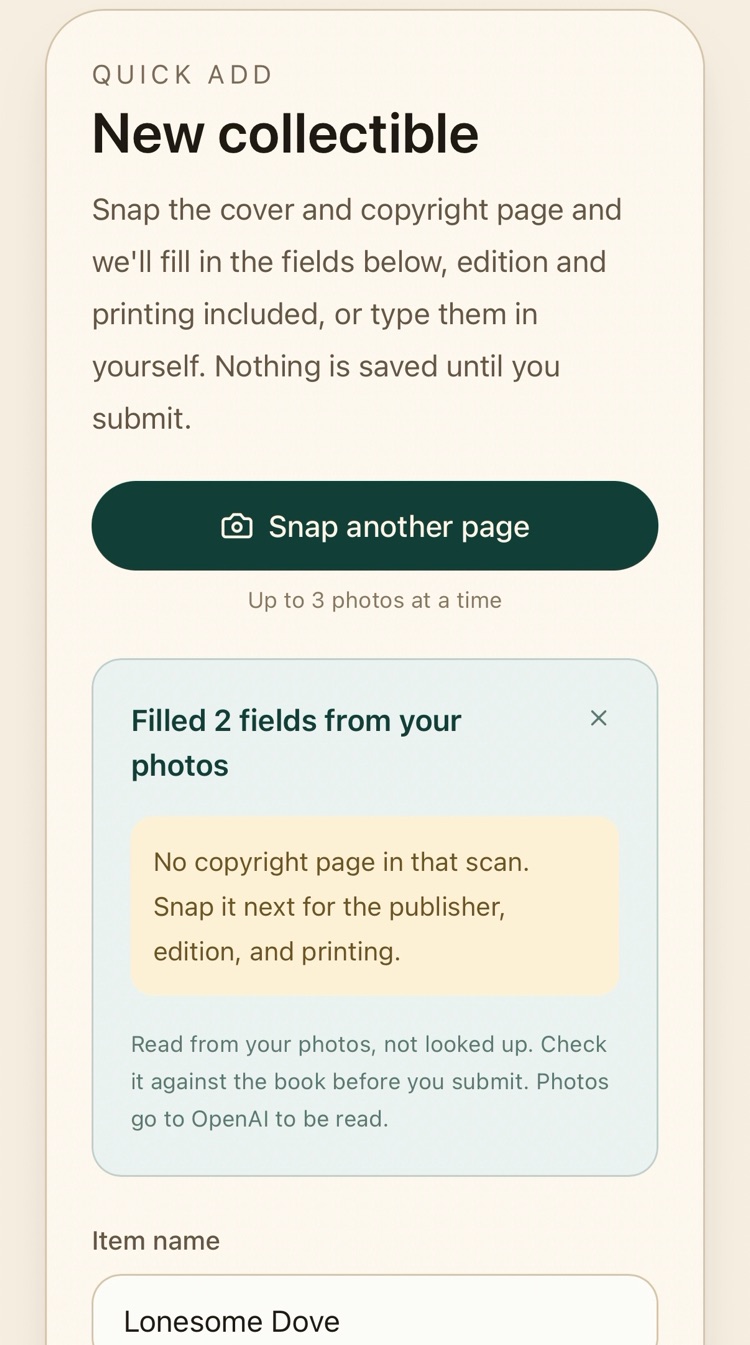
The title and author go into the form, and a panel says how many fields were filled. A cover can't show who published it or which printing it is, so it asks for the copyright page next.
- 5
Snap the copyright page
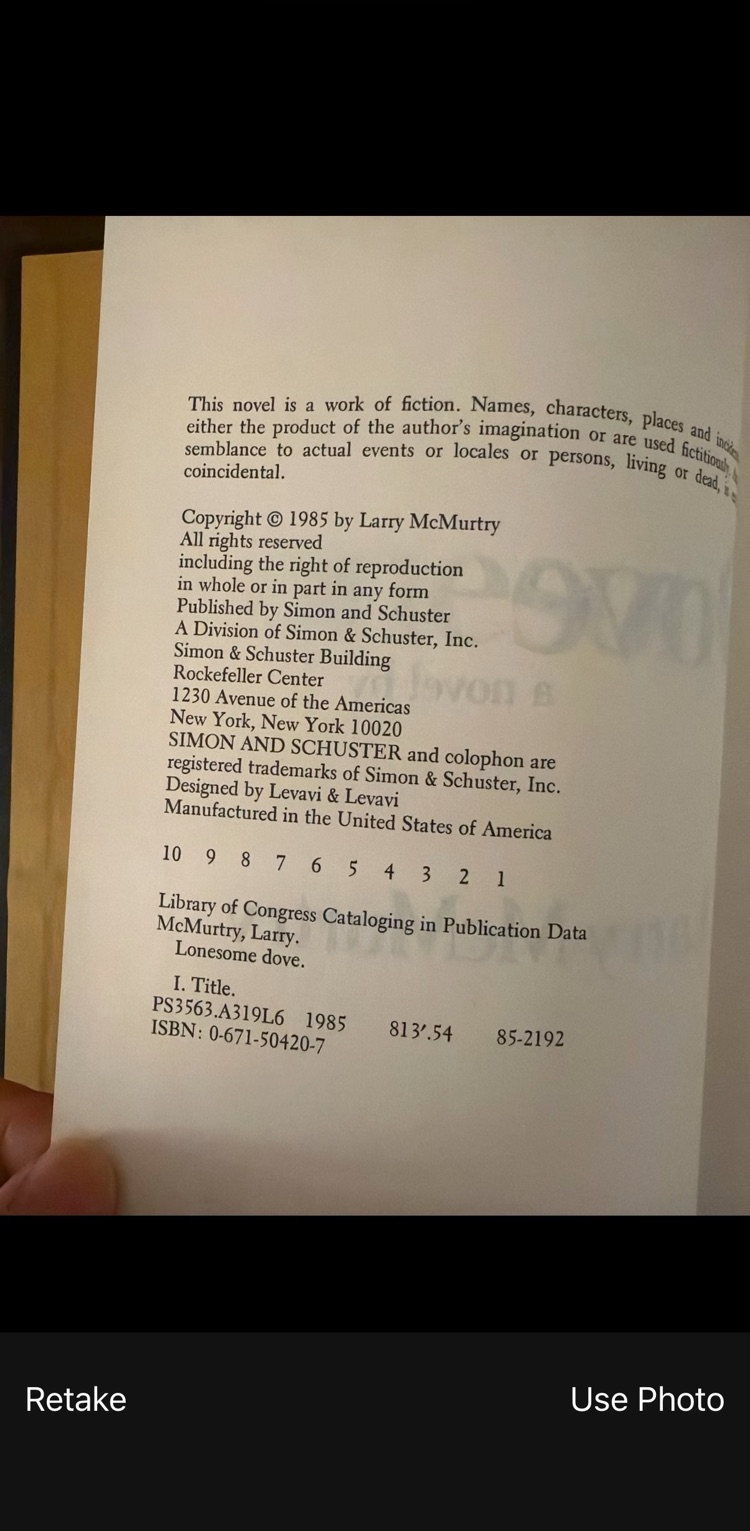
Tap Snap another page and photograph the back of the title page: the block with the copyright, the publisher's address, and the row of numbers. Get the whole number line in the frame.
- 6
Read the reasoning
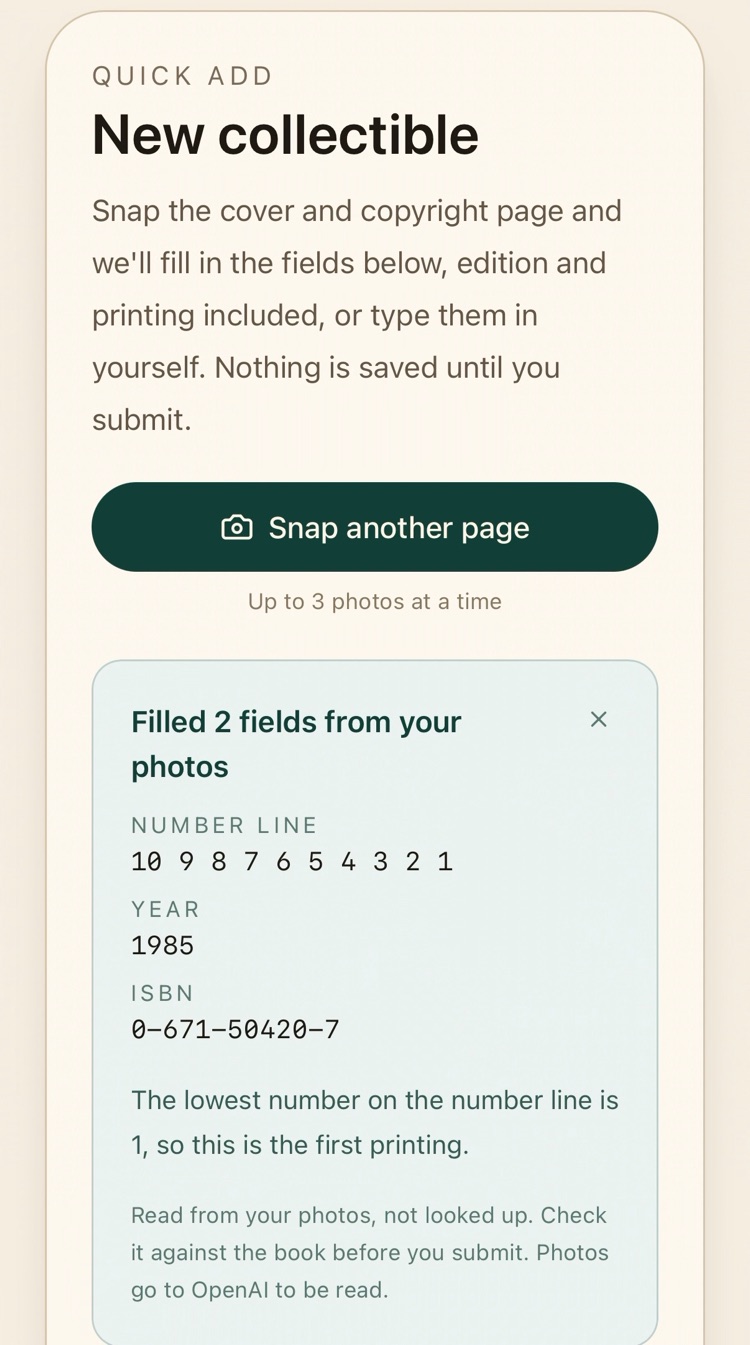
The panel shows what it read, the number line, year, and ISBN, and why it chose the printing. Here the lowest number on the line is 1, so it's a first printing. Hold it up next to the book.
- 7
Check the fields
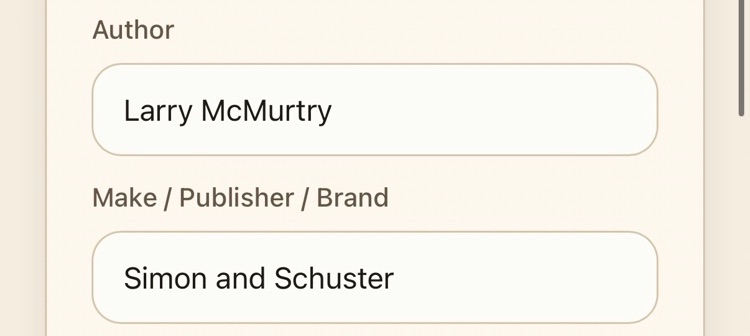
The publisher is filled in from the copyright page, alongside the title and author from the cover. Every field stays editable, so correct anything it misread.
- 8
Fill in the rest, then submit
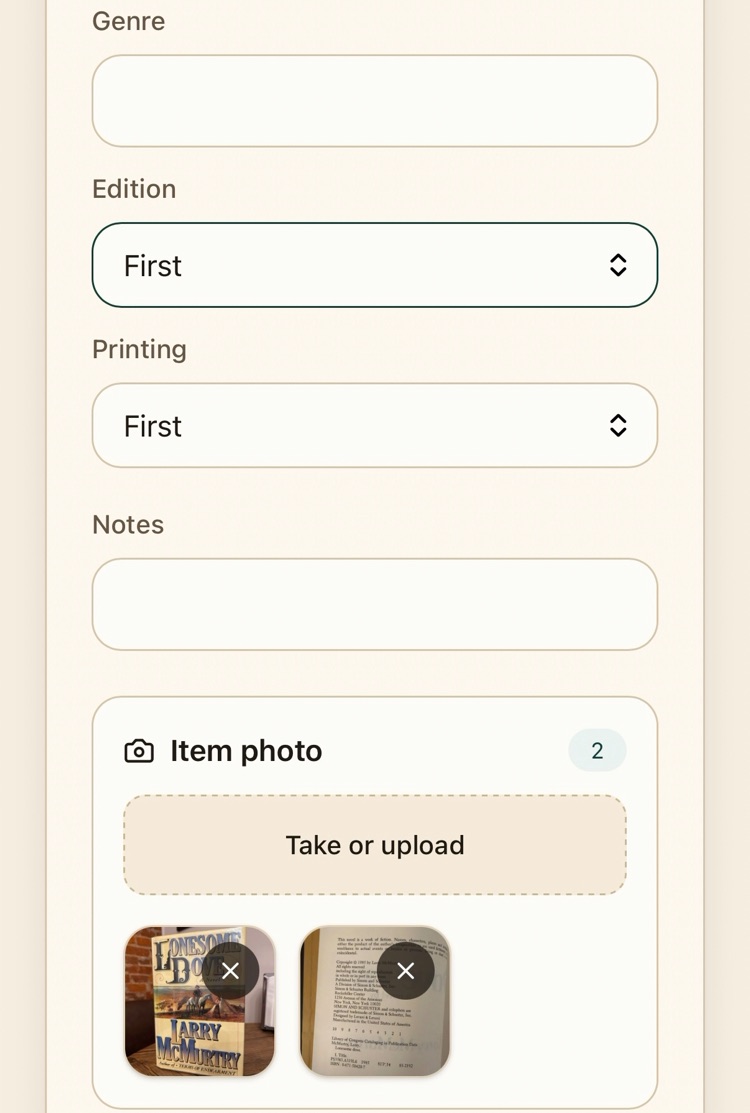
The printing is set from the number line. The edition is filled in only when the page says so in words; Lonesome Dove's doesn't, so it was set to First by hand here. Both photos are already attached as item photos. Add what you paid and anything else you know, and tap Submit.
Good to know
- Anything you typed before scanning is never overwritten. A scan only fills fields that are still empty.
- It knows Random House's habit of printing "First Edition" over a number line that starts at 2, and calls those first printings.
- Book club editions are marked as Other, never First, whatever else the page says.
- Scanning needs a connection. Offline, add the item by hand and the photos sync later.
- Photos go to OpenAI to be read. Scanning doesn't search the web or estimate a value. For that, use Research what it's worth at the bottom of Add Items.