
Works with no signal
Install FirstFinder on your phone and your collection opens in a basement with no bars. Finds you add offline wait on the phone and upload when you're back.
Why it's useful
- Check whether you already own a book while you're standing in a shop with no reception.
- Record a find the moment you're holding it, photos included, instead of trying to remember later.
- Nothing is lost if the connection drops halfway through.
How to use it
- 1
Install it on your home screen
On an iPhone, open firstfinder.app in Safari, tap Share, then Add to Home Screen. On Android, open it in Chrome, open the menu, and choose Install app or Add to Home screen. Open FirstFinder from the new icon from then on.
- 2
Open it once while you're online
FirstFinder keeps a copy of your collection on the phone each time it loads with a connection. That copy is what you'll see offline, so let it load once before you head somewhere without signal.
- 3
Use it as normal with no signal
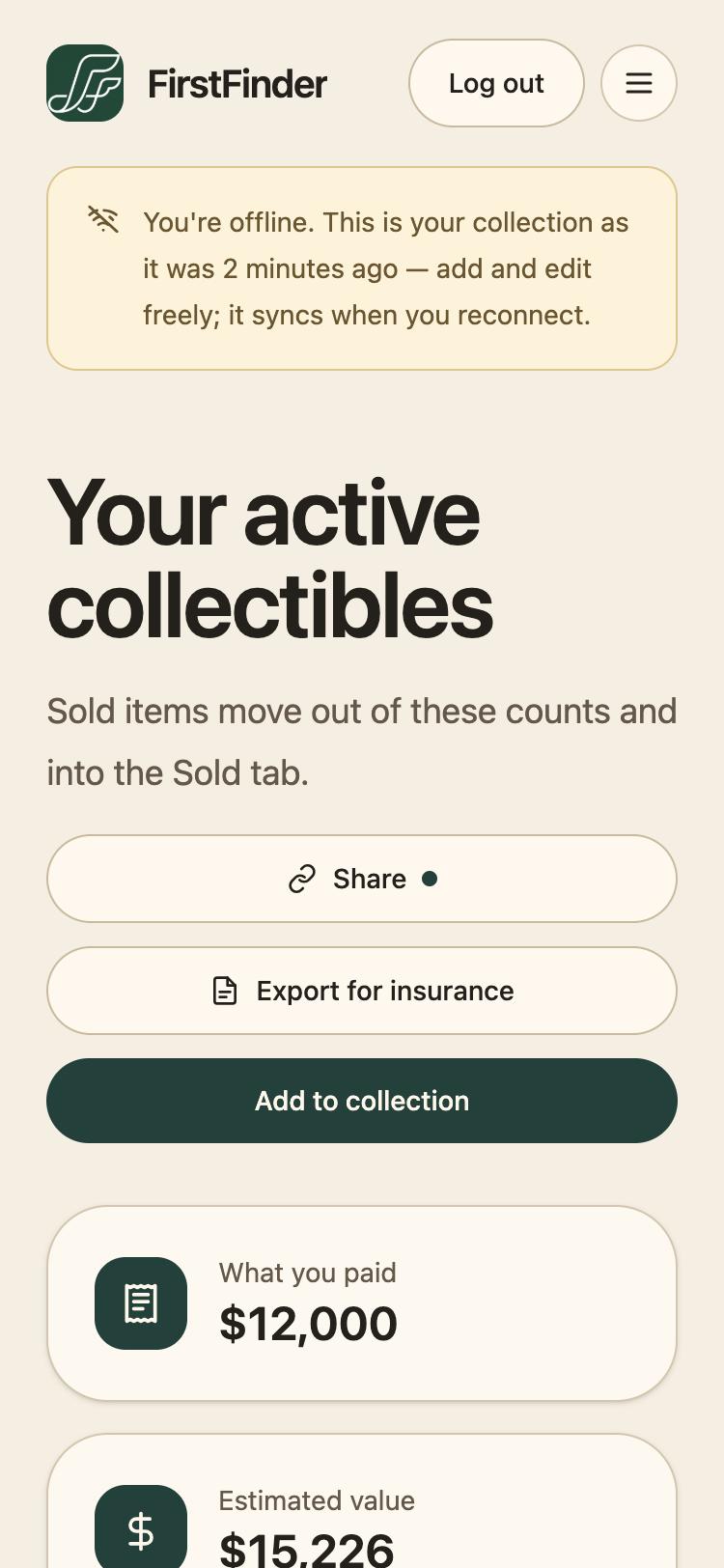
When the connection goes, a banner says you're offline and how old your copy is. Browse and search as usual, and add, edit, or mark items sold.
- 4
Let it sync when you're back
Anything you changed offline is marked Waiting to sync and uploads by itself once you reconnect, photos included. Ten edits to the same item go up as one.
Good to know
- Offline saves need browser storage. In a private window, or with site data blocked, FirstFinder refuses an offline save rather than accept one it can't keep.
- A change that fails to upload three times stops retrying and waits for you to look at it, rather than disappearing.
- Logging out clears the offline copy and any waiting saves from that phone.